How To - Match Dungeon Alchemist's grid layout with Blender
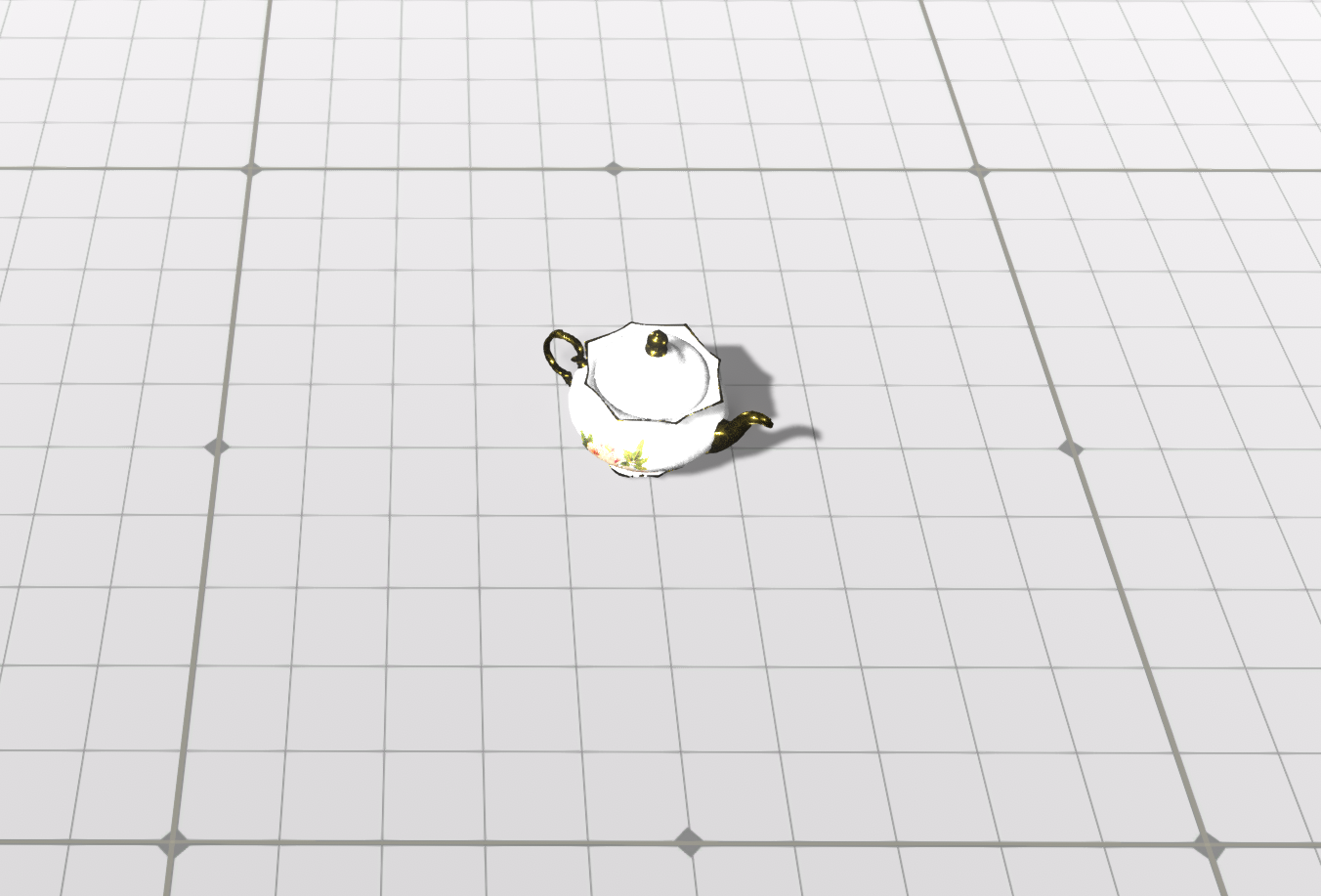
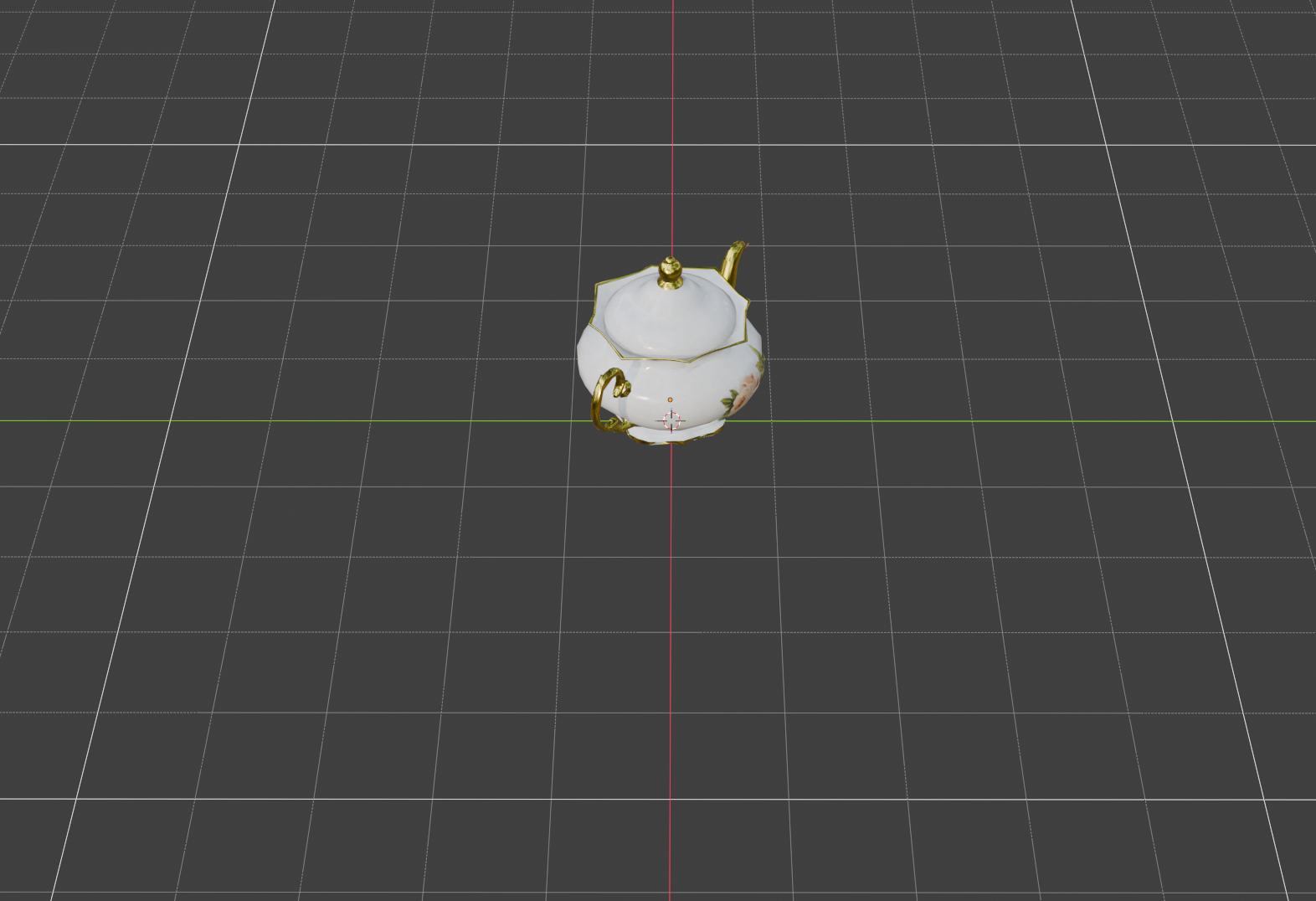
A guide to matching Blender's grid to Dungeon Alchemist's grid layout so your assets are sized correctly.
Step-by-step
- 1
Understand Dungeon Alchemist's grid scale
Dungeon Alchemist uses a 1 tile = 1 meter grid, matching the standard tabletop scale of 5 ft per square. Keep this in mind when sizing your assets so they snap cleanly into place inside the editor.
- 2
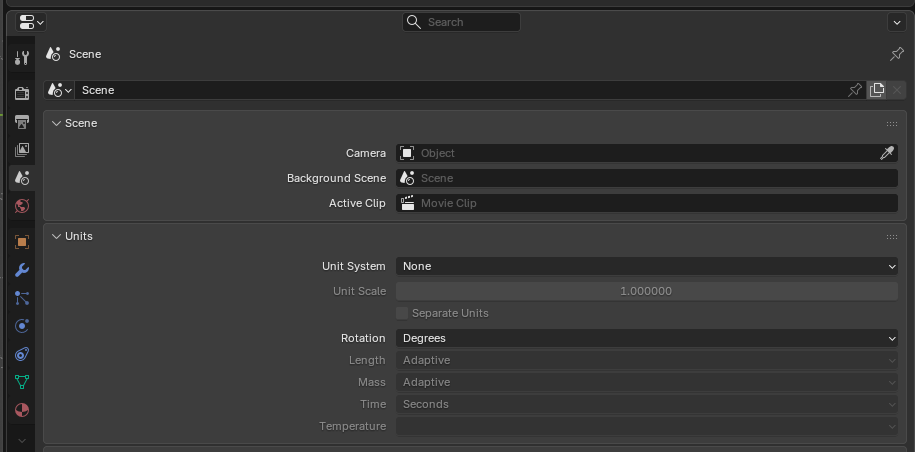
Set Blender's Unit System to None
Open Scene Properties → Units and set the Unit System to None.
- 3
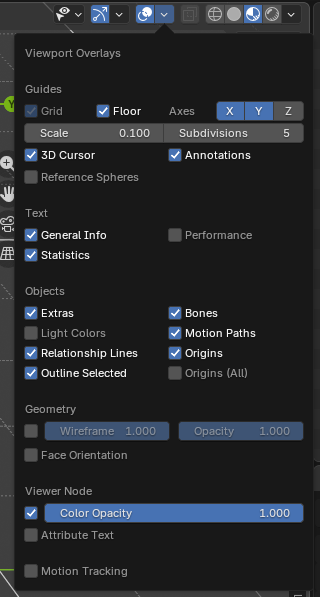
Configure the Viewport Overlay
In the viewport's Overlays dropdown, set Scale to 0.1 and Subdivisions to 5 so each grid square represents a single tile. This gives you a 1:1 visual reference while modeling.
- 4
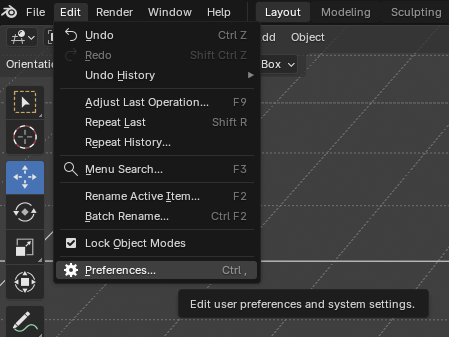
Click on Preferences under the Edit tab
Preferences is found in the Edit tab in the tab layout bar.
- 5
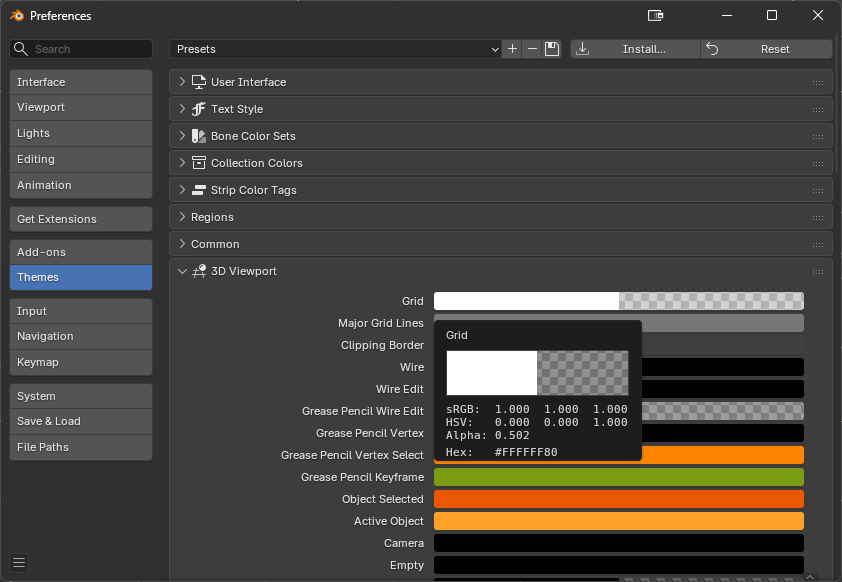
With the Preferences box open
Click on Themes in the sidebar to the left. On the right, click on 3D Viewport. Click on Grid and a color wheel will pop up. Choose white or your own color preference. Close the Preferences box.
- 6
Both grids are now an exact match
Once you do this, your Blender's grid will have the exact same grid layout as Dungeon Alchemist. This will ensure your models are to scale in both Blender and Dungeon Alchemist.