Asmodeus LoungeHow-tos, documentation, images, and video tutorials for importing assets into Dungeon Alchemist from Blender correctly.
Dungeon Alchemist

Collision Boxes

Colliders are an essential part of Dungeon Alchemist assets. They determine how an object can be selected, what objects stack, when they collide with other assets. Properly configuring the colliders is vital for the asset to work correctly.
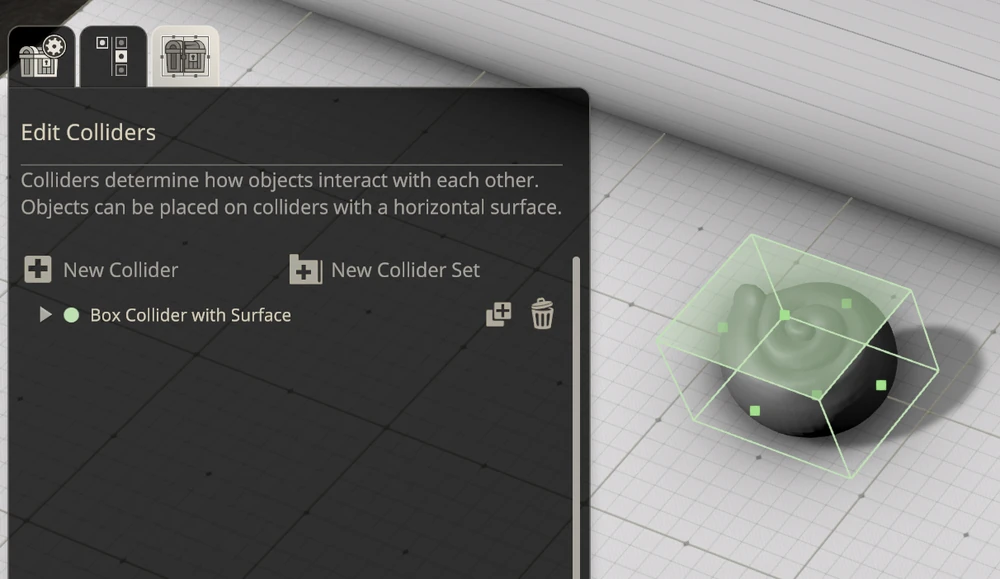
Edit Colliders panel in Dungeon Alchemist showing a Box Collider with Surface around a 3D object

Type of collision boxes

  1. 1

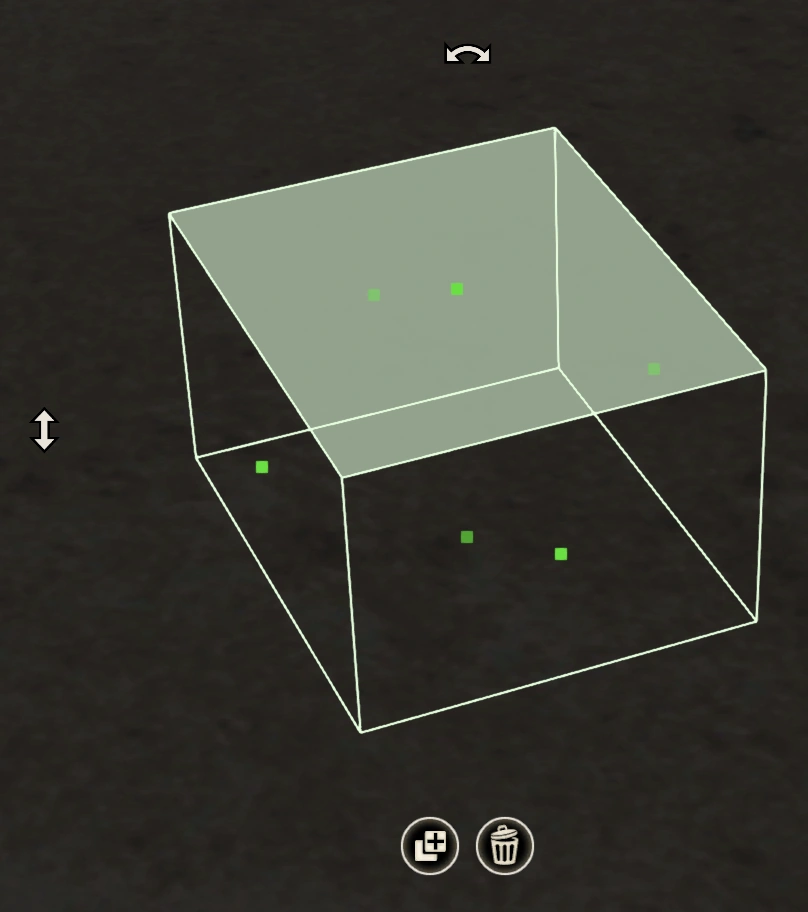
    Box Colliders (Light Green)

    A light green box collider with a translucent stackable top surface

    The default option. If the top surface is wide enough in all directions and has no rotation, it becomes a surface (see above for explanation). A stackable surface will be lightly tinted.

  2. 2

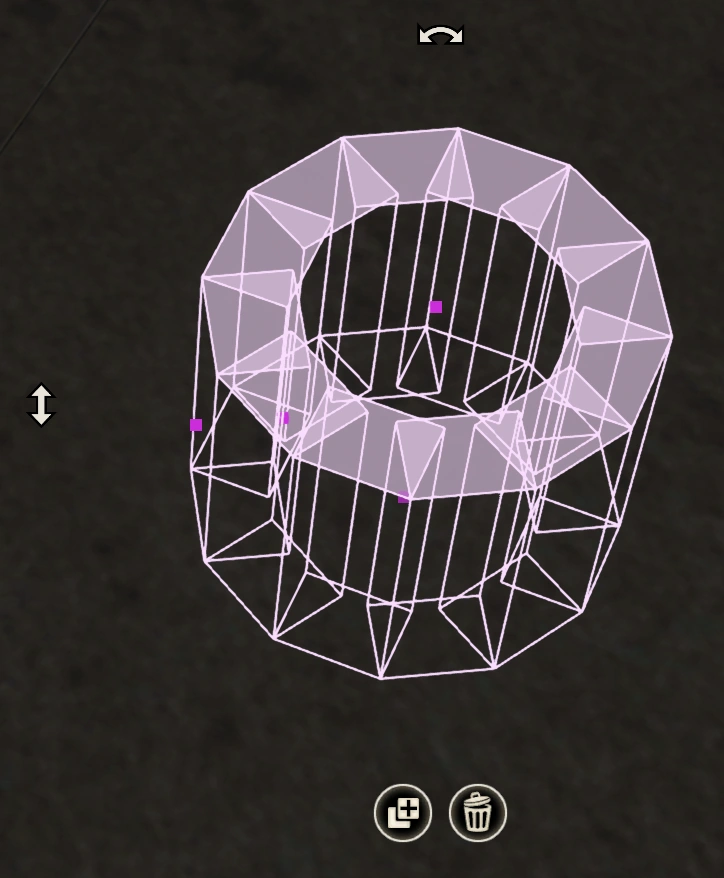
    Ring Colliders (Light Purple)

    A light purple ring collider outlining a hollow cylindrical asset

    Ring colliders are used to define the borders of hollow cylindrical assets, such as tubes.

  3. 3

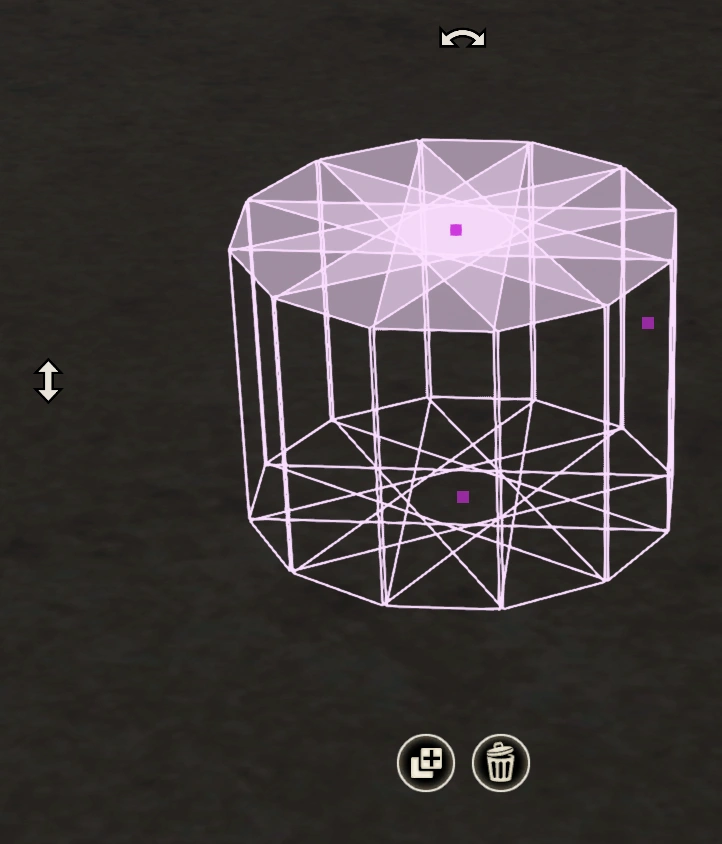
    Cylinder Colliders (Light Purple)

    A light purple cylinder collider around a round-sided asset

    Cylinder Colliders are intended for those assets that need a clearly defined, round side. These are usually suited only to larger objects, that need a finer definition.

  4. 4

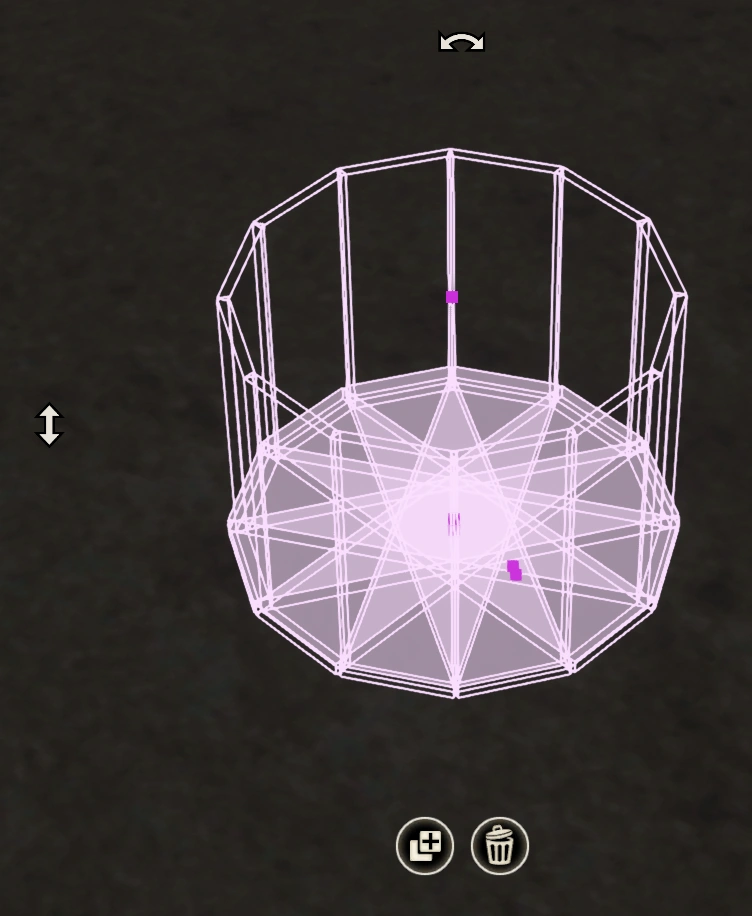
    Basket Colliders (Light Purple)

    A light purple basket collider with a stackable surface at the bottom

    Basket Colliders are hollow cylindrical colliders with a surface at the bottom. Objects can be placed within, and will move as if stacked upon the bottom. Use this collider for baskets, larger pots.

Editing Colliders

All colliders have small squares in the center of their sides, that are used for scaling in their respective axes. Dragging the squares will scale the colliders. Colliders can be moved as any regular asset, by clicking them so the Object GUI appears around them. The standard Object GUI scaling corners will not be present, however, as scaling is done with the handles. Duplicating and deleting a collider or collider set is done by the icons at the base of the GUI frame.

Pro tips

  • Use the orthographic camera views in the top right corner to easily configure the colliders from different angles.
  • You can select a collider by clicking on it in the 3D view or by selecting it in the menu.
  • Selected colliders will have a different color, making them easier to spot. They will also get preference when multiple handles overlap, so use this feature to make sure you're adjusting the right collider.
  • You can rotate colliders along different axes depending on the orthographic camera view you pick in the top right.
  • If you need to fine-tune specific colliders, you can enter numbers directly by expanding with the arrow key the collider in the menu.
  • From the same expanded menu you can also enable or disable surfaces for box colliders, if you change your mind at some point and don't want objects to be placeable on that collider.
  • Dungeon Alchemist Wiki has a more detailed instruction on it's colliders here.

Addendum

Collision boxes and how they are factored with an asset is important! You want the least amount of collision space between the asset and colliders when possible. However, with the addition of being able to remove colliders from the Dungeon Alchemist interface, this point almost becomes moot.