Animation
Keyframes, rigging & motion
From bouncing balls to full character rigs — learn how Blender's timeline, dope sheet and armature system bring objects to life.
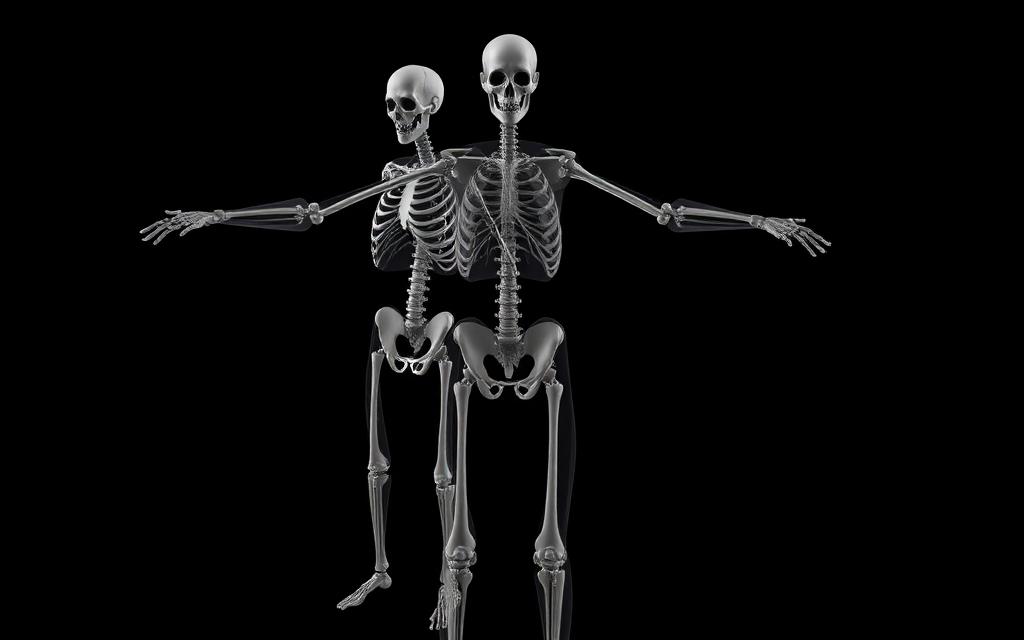
Step-by-step
- 1
Insert your first keyframe
Move to frame 1, select an object, press I and choose 'Location'. Advance to frame 30, move the object, and press I again. Press Spacebar to play — Blender interpolates between the keys. - 2
Read the Dope Sheet & Graph Editor
The Dope Sheet shows keyframes as diamonds across time — drag them to retime. The Graph Editor shows their interpolation curves; bend handles to control easing. - 3
Build an armature
Shift + A → Armature. In Edit Mode, extrude bones (E) from the root. Parent your mesh to the armature with 'Automatic Weights' (Ctrl + P) to bind it. - 4
Pose the character
Select the armature, switch to Pose Mode, then rotate (R) bones. Insert keyframes with I → 'Location, Rotation & Scale' to record the pose. - 5
Render an animation
In Output Properties set the frame range and output folder. Choose a video format (FFmpeg → MPEG-4 → H.264) and hit Ctrl + F12 to render the full sequence.
Keyboard shortcuts
| Keys | Action |
|---|---|
I | Insert keyframe |
Spacebar | Play / pause animation |
← / → | Step one frame |
Shift + ← / → | Jump to start / end |
Ctrl + Tab | Switch object / pose mode |
Watch the tutorial
Pro tips
- Use Auto Keying (the red circle icon on the timeline) to insert keys automatically whenever you transform something.
- Stick to 24 fps for cinematic feel; 30 or 60 fps for game-style motion.
- Animate the camera with a 'Follow Path' constraint for smooth, repeatable shots.